Steps
- Download the PNG with the “Download image” button on the page’s detail view.
- Open the image and choose Print (PC: Ctrl+P; phone: Share → Print).
- Pick A4 and “Fit to page” (or “Scale to fit paper”).
- Set color to black-and-white or grayscale to save ink and keep lines crisp.
- Check the preview so nothing is cut off, then print.
Resolution and sharpness
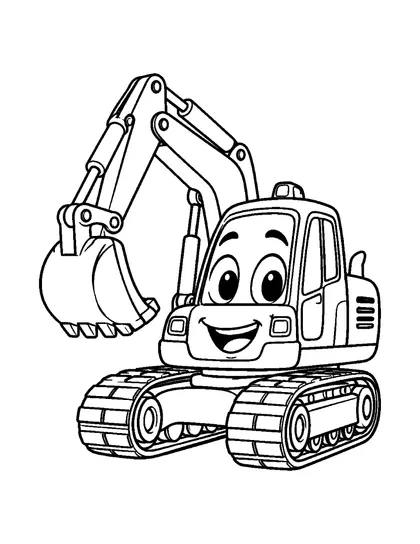
Image sizes differ by series. The truck and vehicle pages and the kawaii animal scene line art are large 300 DPI images made for A4. The other series are about 768×1024 pixels, so on A4 the lines look slightly softer. That is fine for coloring, and printing at A5 (half size) is an option for extra sharpness.
Choosing paper
- Pencils and crayons: plain 80 gsm copy paper is enough.
- Water-based markers and paint: 100 gsm or thicker reduces bleed-through.
- Cut-and-paste activities: 120 gsm or more is sturdier.
Saving ink
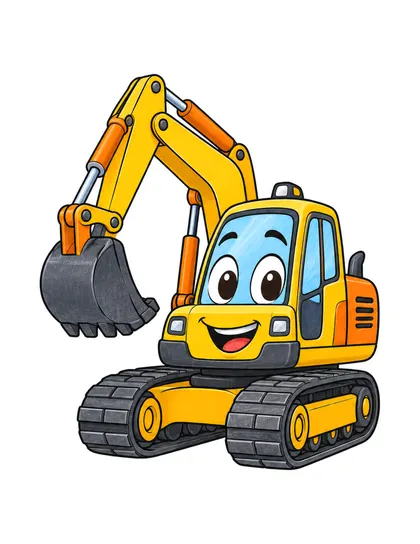
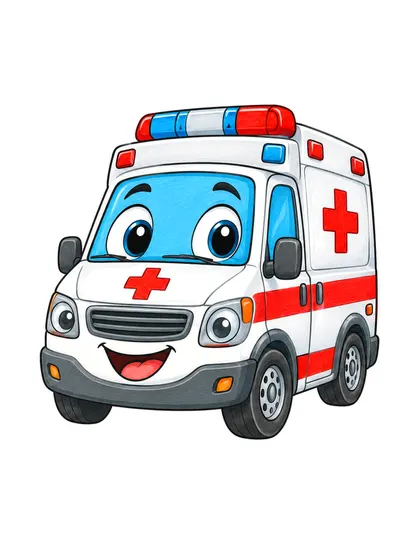
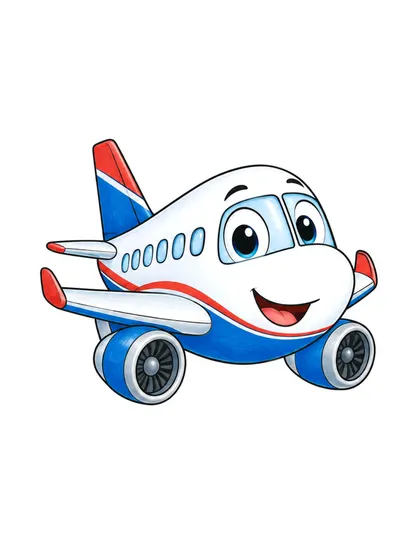
“Draft quality” can make lines faint, so we suggest standard quality for line art. You can view the color reference on a screen and skip printing it.
If it prints cut off or too small
If “Actual size” is selected the image may be larger than the paper. Switch to “Fit to page” and set margins to none or minimal.
Pages used in this article
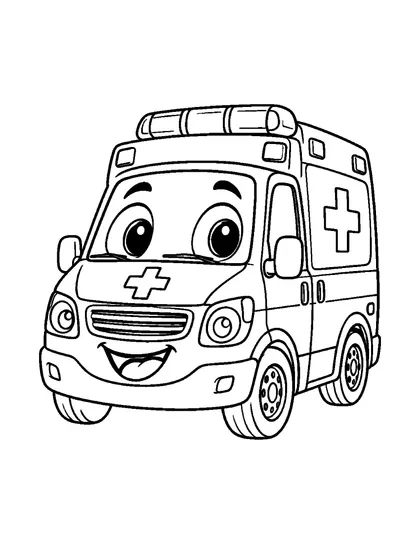
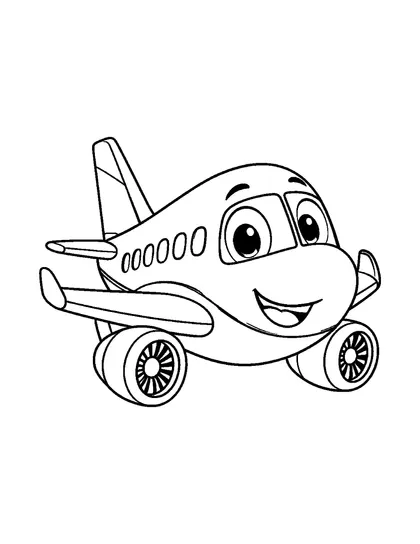
FAQ
Are there PDFs?
Pages are provided as PNG images right now. Print them as they are.
Do I need to print the color reference?
Not necessarily. You can pick colors while looking at it on a screen.
Can I print from a phone?
Yes. Open the downloaded image and choose Print from the share menu.