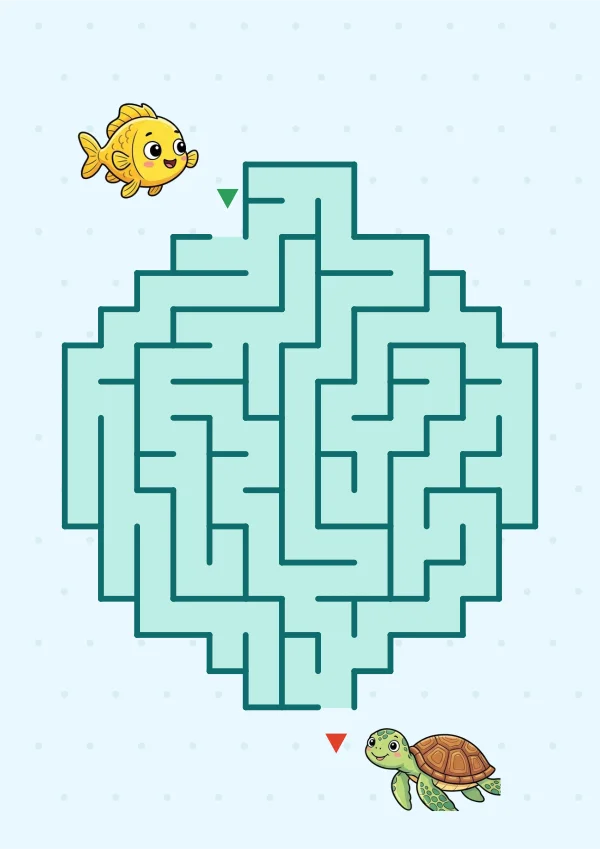
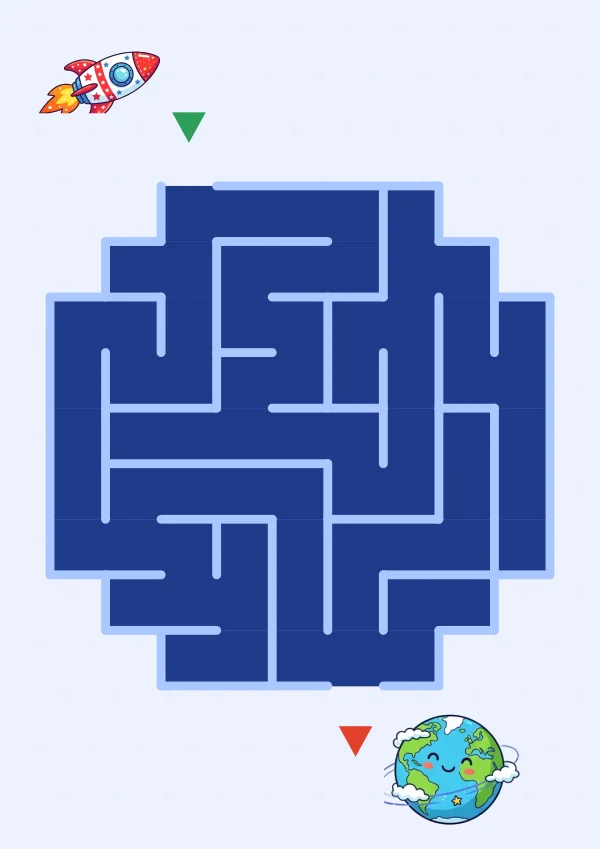
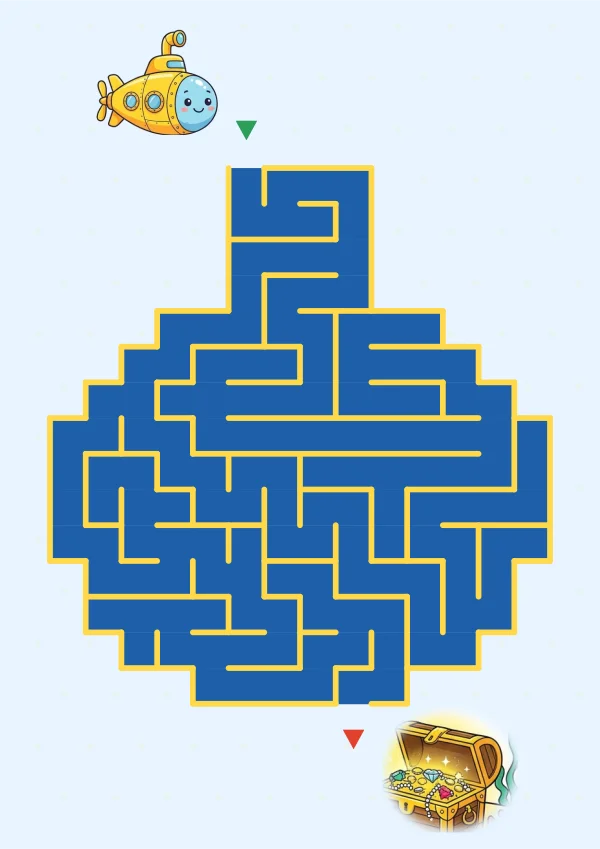
1. Open a maze with Play
On the mazes page (/en/maze/), press “▶ Play Easy first” in any theme, or open a single maze and press the green “▶ Play” button at the top of the tools. It opens in a new window (tab), so the maze page stays where it was.
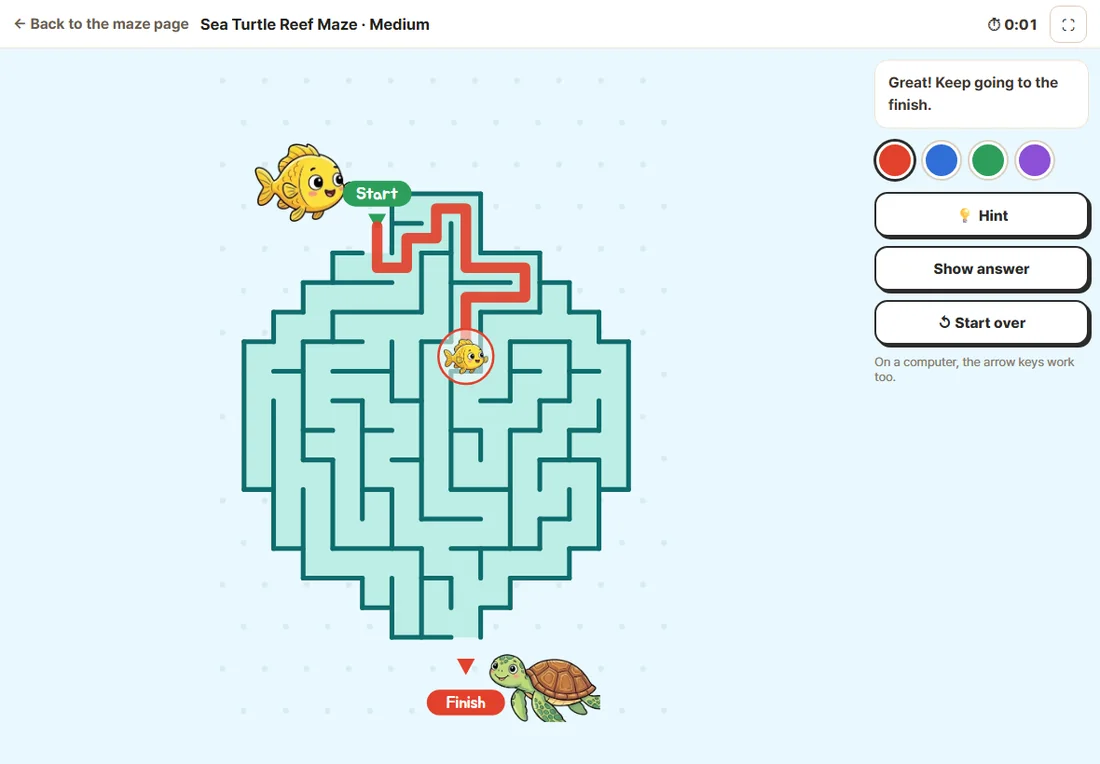
The play screen has no site menu, just the maze and its tools. The maze name and a timer sit at the top; “Full screen (⛶)” in the top-right corner hides the browser bar too, and “Back to the maze page” in the top-left takes you back.
2. Drawing the path
- Start on the start arrow or at the end of your line (where the character is) and draw along the path with a stylus, finger or mouse. If you start somewhere else, a message reminds you to keep drawing from the end of your line.
- The line snaps to the middle of each cell, so a slightly wobbly hand still makes a neat line.
- Drawing fast does not skip cells. The stroke is split into small steps and each cell is checked in turn.
- A diagonal move turns along whichever side is open.
- Tap anywhere on your line to carry on from that point; the part after it is erased.
- Choose from four pen colors: red, blue, green and purple.
3. Walls and going back
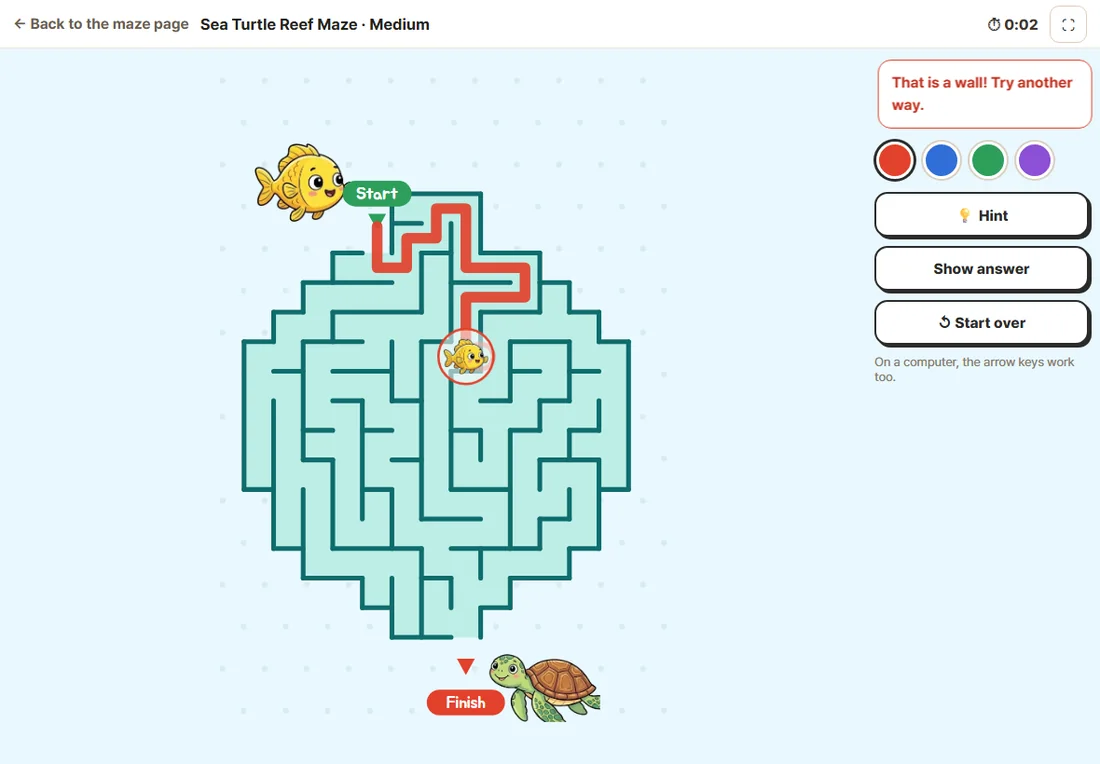
If there is a wall in the way, the line stops in front of it. The spot flashes red and the message says “That is a wall! Try another way.” Android devices that support vibration give a short buzz. Because a line can never cross a wall, nobody can “finish” by cutting through.
If you are in a dead end, simply go back the way you came. The line erases as you retrace it, so no eraser is needed. Going back to a junction and trying the other way is the basic way to solve a maze, and on screen it is easy to do as often as you like.
4. Hint, Show answer and Start over
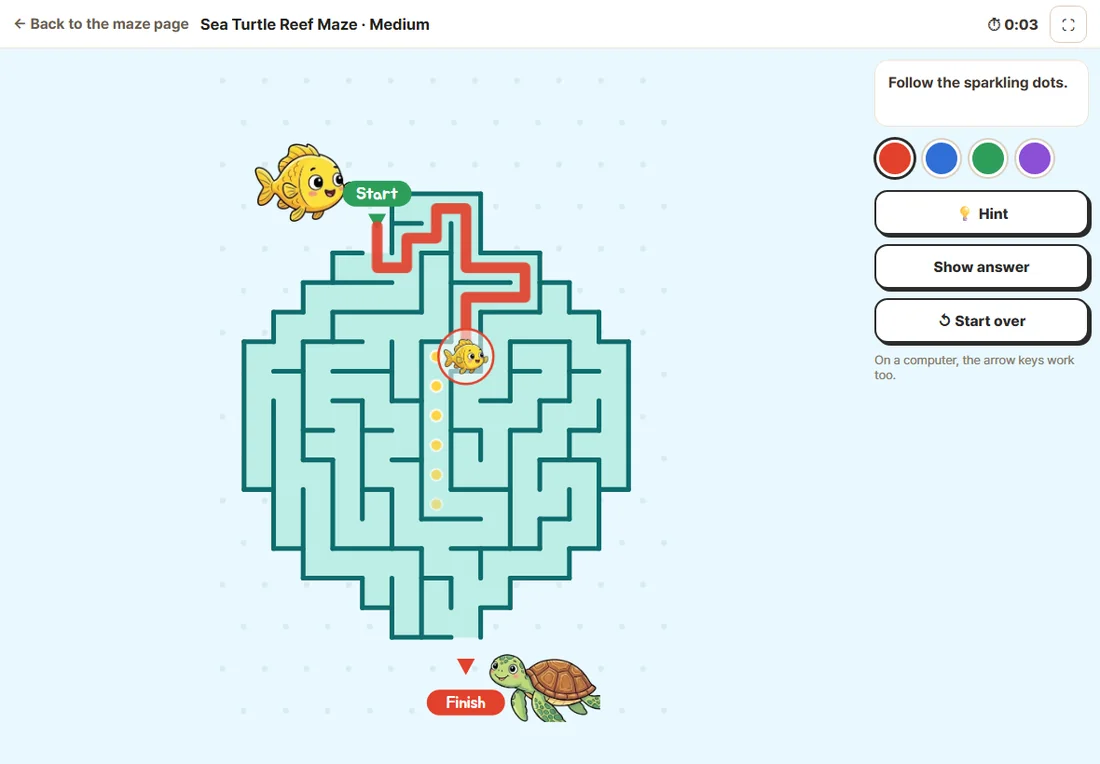
- Hint: yellow dots sparkle for 2.6 seconds on the next 6 cells from the end of your line toward the finish. If you are off the path in a dead end, it first shows the way back to the junction. You can press it more than once.
- Show answer: draws the answer line from start to finish over the maze. Press again to hide it.
- Start over: clears your line, the timer and the wall count, and starts fresh.
5. At the finish: time and stars
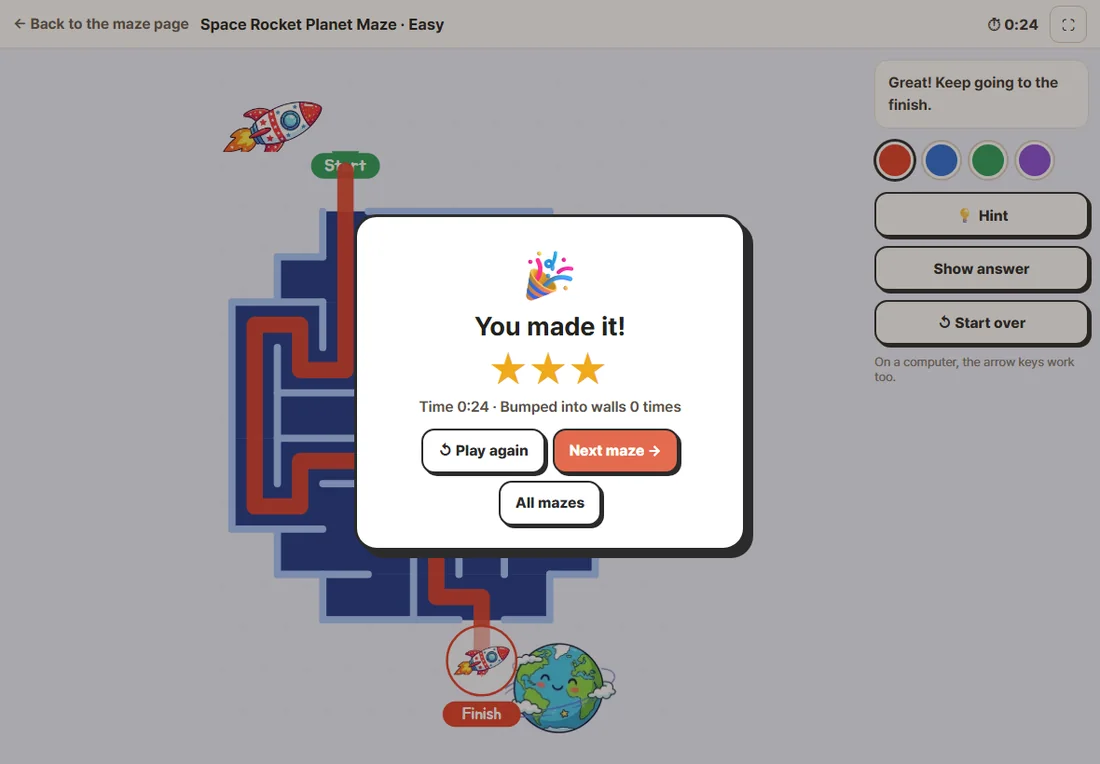
When your line reaches the finish arrow, a “You made it!” box shows your time, how many times you bumped into walls, and your stars:
- 3 stars: 2 wall bumps or fewer
- 2 stars: 3 to 6 wall bumps, or if you used a hint (a hint caps the score at 2 stars)
- 1 star: 7 or more wall bumps, or if you used Show answer
- The buttons let you play the same maze again, go to the “Next maze” (the next level of the same theme; after Hard, the Easy maze of another theme), or return to all mazes.
6. Tips for each device
- Tablet with a stylus: the closest thing to paper. After you draw with the stylus once, a palm resting on the screen will not draw.
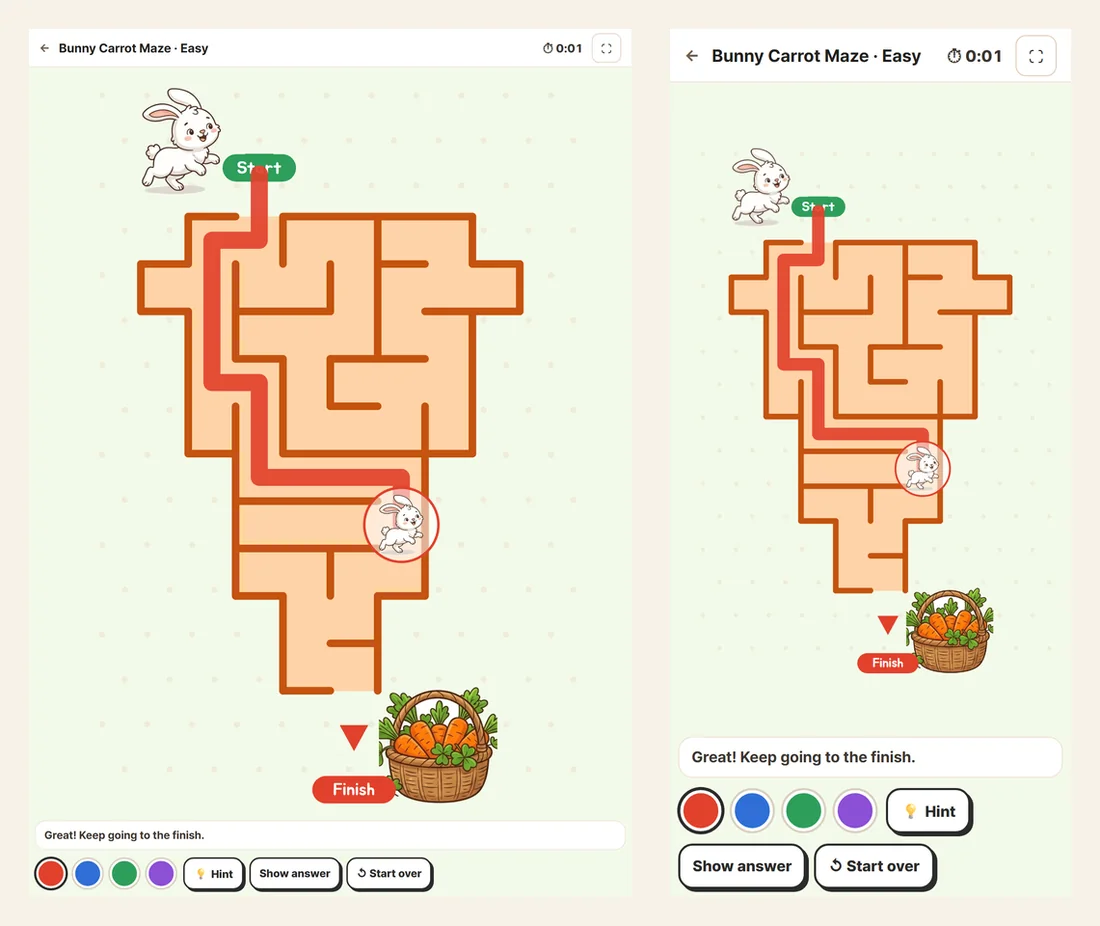
- Tablet with a finger: young children may find a finger easier. In landscape the maze is bigger; in portrait the tools move below it. A second finger touching the screen is ignored.
- Phone: in portrait, the tools sit in two rows below the maze. The screen is small, so Easy or Medium suit it best; for Hard, turn on Full screen.
- Computer: hold the mouse button and drag to draw. The arrow keys move one cell at a time, so children who are not yet steady with a mouse can play too.
7. Using screen and paper together
- Solve a maze on screen, then print the same maze and solve it again with a pencil: a fun way to see whether the path has stuck.
- Or solve on paper first and check with “Show answer” on screen.
- In class, show the computer on a TV or projector: children call out “Up! Right!” and the teacher moves with the arrow keys.
Try the mazes from this guide
Open a maze to download its question and answer sheets, or press Play to solve it with a stylus or finger in a new window.
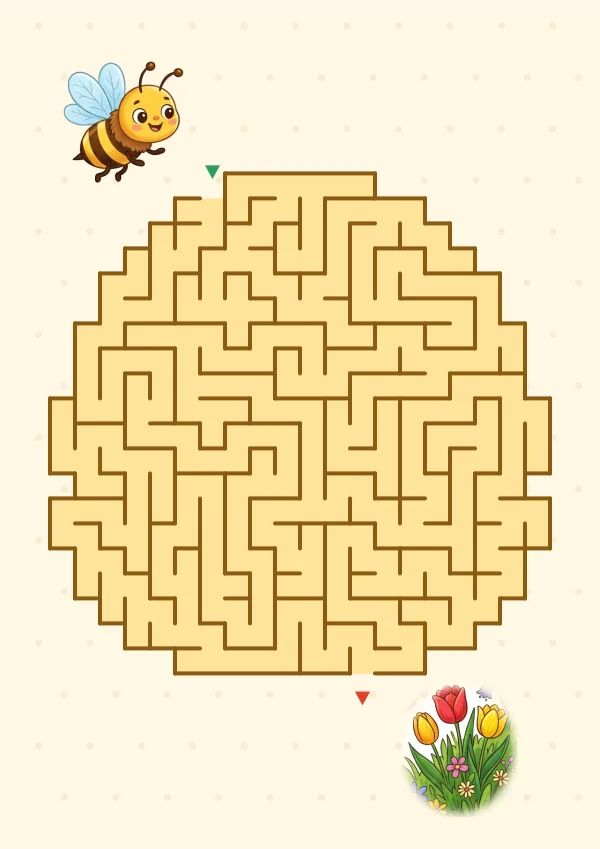 Honeybee Hive MazeHard · Ages 8+
FAQ
Do I need to install an app?
No. Open a maze page in your browser and press Play. There is nothing to install.
Is my progress saved?
No. The time and stars are shown on that screen only and are not stored. Closing the window or pressing Start over begins again.
My palm keeps drawing lines.
After you draw with a stylus once, finger and palm touches are ignored. When drawing with a finger, only the first finger to touch the screen is followed.
Is there a Korean version?
Yes. Play from the Korean maze pages (/maze/) and all messages and buttons are in Korean.
Can I print the mazes too?
Yes. Each maze page has an A4 question sheet and answer sheet to download. Choosing a level and printing tips are in our guide to free printable mazes.